

Docker Compose: A Beginner-to-Expert Guide
Learn Docker Compose from your first compose.yaml to production-grade stacks: core elements, variables and secrets, healthchecks, profiles, overrides, tips and tricks, and how to harden services at the Compose level.
By Mark Poulton
Docker Compose: A Beginner-to-Expert Guide
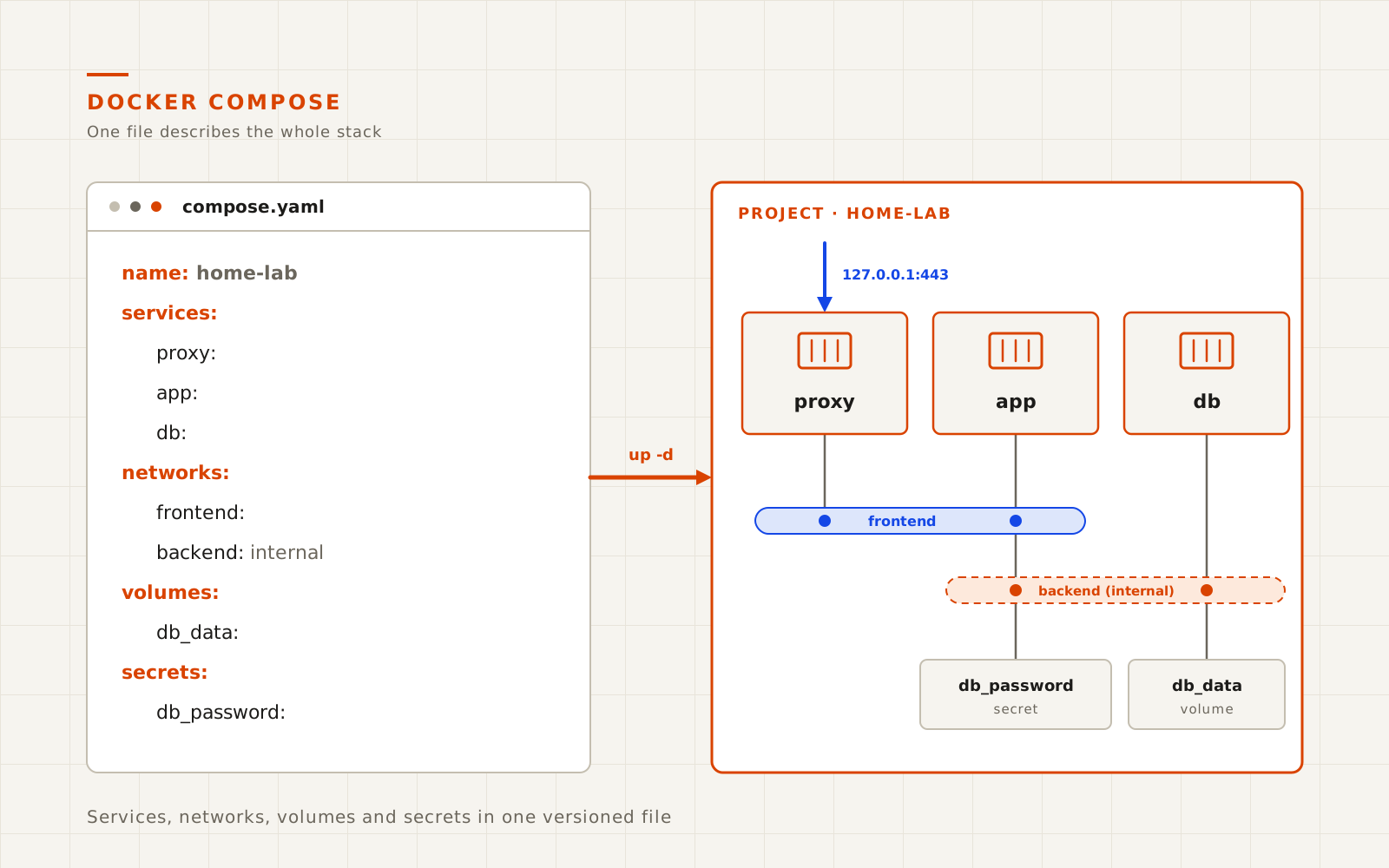
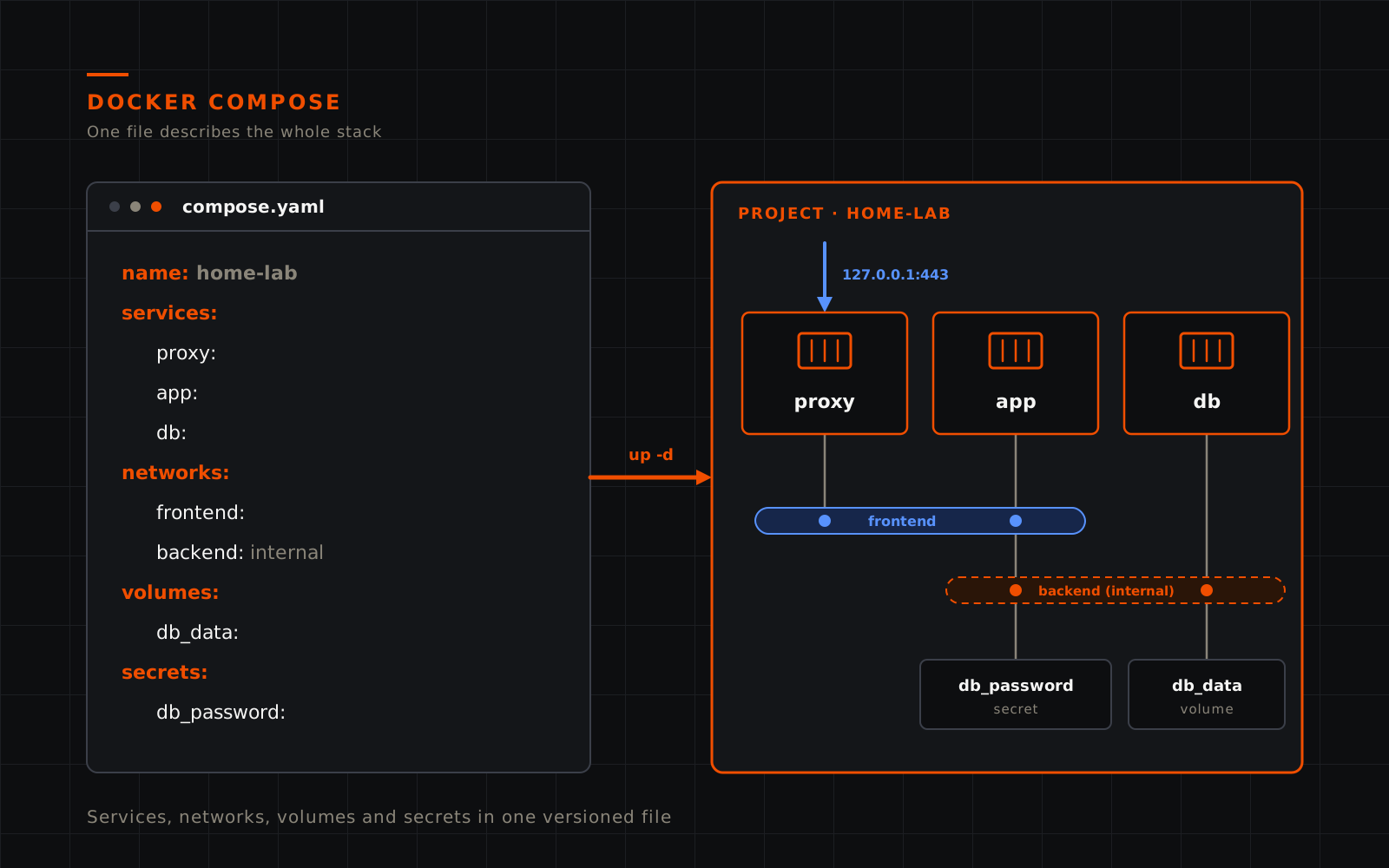
Docker Compose lets you describe a whole application, every container, network, volume and secret, in one YAML file called compose.yaml, then start, update and remove it with a single command. If you run more than one container, Compose is the difference between a server you remember how to rebuild and one you don't.
This guide is the third in the A Little Bit Tech Docker series. The weekend project to build a properly managed Docker host gets a server running with a first Compose file, and the ten best Docker containers for home users suggests what to run on it. This article goes deeper into Compose itself:
- Beginner: what Compose is, why it beats
docker run, the core elements of a Compose file and the commands you'll use every day. - Intermediate: variables,
.envfiles, healthchecks, startup order, logging and resource limits. - Advanced: profiles, override files,
include, YAML anchors, one-shot jobs and development watch mode. - Security: the Compose settings that make a stack meaningfully harder to attack, and the limits of what Compose can protect.
Each section stands on its own, so skip to the level you need. Examples were checked against the Compose Specification and Docker documentation in November 2026.
What is Docker Compose?
Docker Compose is a tool for defining and running multi-container applications. You write the desired state in a YAML file: which images to run, how they connect, which ports they publish and where their data lives. Compose then creates or updates containers, networks and volumes to match.
Three terms come up constantly:
- Service: one component of your application, such as a web app or a database. A service runs as one or more containers created from the same configuration.
- Project: everything defined by one Compose file (or set of files). Compose labels every resource with the project name, so it knows what belongs to the stack.
- Compose Specification: the open standard that defines the file format. Docker Compose implements it, and so do other tools such as Podman Compose, to varying degrees.
Compose is declarative. You don't tell it "start this, then create that network". You describe the end state, and Compose works out what to change. Run docker compose up -d twice and the second run does nothing, because everything already matches the file.
Why use Docker Compose instead of docker run?
Short answer: a docker run command is something you type and forget. A Compose file is a record you can read, version, review and replay.
Here's the same container both ways. First with docker run:
docker run -d --name uptime-kuma --restart unless-stopped \
  -p 127.0.0.1:3001:3001 -v uptime-kuma-data:/app/data \
  louislam/uptime-kuma:2
And as a Compose service:
services:
  uptime-kuma:
    image: louislam/uptime-kuma:2
    restart: unless-stopped
    ports:
      - "127.0.0.1:3001:3001"
    volumes:
      - uptime-kuma-data:/app/data

volumes:
  uptime-kuma-data:
The Compose version is longer, but it's the one you'll still understand in a year. The advantages grow with every service you add:
| Concern | docker run | Docker Compose |
|---|---|---|
| Record of the configuration | Shell history, if you're lucky | A file you can commit to Git |
| Multiple containers | One command per container, in the right order | One up for the whole stack, ordered by dependencies |
| Networking | Create networks by hand and attach each container | A private network per project, with DNS by service name |
| Updates | Stop, remove and re-run with the same flags | pull then up -d recreates only what changed |
| Review and change control | Hard to diff a command | Pull requests and git diff on a YAML file |
| Rebuilding after a failure | Reconstruct every command from memory | Restore the file and volumes, then run up -d |
Use docker run for throwaway experiments. For anything you expect to still be running next month, use Compose.
Which version of Compose should you use?
Use the Compose plugin that ships with current Docker Engine and Docker Desktop, invoked as docker compose (with a space). Check what you have:
docker compose version
A few version facts trip people up:
docker-compose(with a hyphen) is the old Python tool, Compose v1. It stopped receiving updates in 2023. If a guide usesdocker-compose, the file usually still works, but run it withdocker compose.- Compose jumped from 2.x to 5.x in late 2025. The project skipped 3 and 4 to avoid confusion with the old
version: "3"file formats. The 5.x line also delegates image builds to Docker's Bake engine and makes Compose usable as a Go SDK. Everything in this article works on Compose 2.24 or later, including every 5.x release. - The top-level
version:key is obsolete. Compose ignores it and prints a warning. Delete it from old files rather than worrying about which number to use. - Name the file
compose.yaml. Compose also acceptscompose.yml,docker-compose.yamlanddocker-compose.yml, butcompose.yamlis the preferred name.
What goes in a compose.yaml file?
A Compose file has a handful of top-level elements. Only services is required.
| Element | What it defines | When you need it |
|---|---|---|
name | The project name, used to label and prefix resources | Always worth setting, so it doesn't depend on the folder name |
services | The containers to run and how to configure them | Always |
networks | Custom networks for services to join | When you want to separate services from each other |
volumes | Named volumes for persistent data | Whenever a service stores data you want to keep |
secrets | Sensitive values, mounted into containers as files | Passwords, API keys and certificates |
configs | Non-sensitive configuration files mounted into containers | Config files you'd rather not bind mount |
include | Other Compose files to load as part of this project | Splitting a large stack into smaller files |
x-* | Extension fields that Compose ignores | Reusable YAML snippets (covered later) |
Here's a small but complete example: a web app with a PostgreSQL database.
name: notes

services:
  app:
    image: ghcr.io/example/notes:1.8.2
    restart: unless-stopped
    ports:
      - "127.0.0.1:8080:8080"
    environment:
      DATABASE_HOST: db
    depends_on:
      db:
        condition: service_healthy
    networks:
      - web
      - data

  db:
    image: postgres:17-alpine
    restart: unless-stopped
    environment:
      POSTGRES_DB: notes
      POSTGRES_USER: notes
      POSTGRES_PASSWORD: ${DB_PASSWORD:?Set DB_PASSWORD in .env}
    volumes:
      - db_data:/var/lib/postgresql/data
    networks:
      - data
    healthcheck:
      test: ["CMD-SHELL", "pg_isready -U $$POSTGRES_USER -d $$POSTGRES_DB"]
      interval: 10s
      timeout: 5s
      retries: 5

networks:
  web:
  data:
    internal: true

volumes:
  db_data:
The ghcr.io/example/notes image is a placeholder. Swap in any app that talks to PostgreSQL. The rest of this article explains each part.
The core service elements
Most services use the same eight or so keys. Learn these and you can read almost any Compose file.
image: what to run
image names the container image, optionally with a registry, tag or digest:
image: postgres:17-alpine            # Docker Hub, tag 17-alpine
image: ghcr.io/home-assistant/home-assistant:stable   # GitHub Container Registry
If you omit the tag, Docker uses latest, which means "whatever is newest the next time this host pulls". That's fine for a first test, but pin a specific version once a service works. Updates then happen when you decide, and you can roll back by changing the tag. The security section covers pinning by digest as well.
To build from source instead, use build:
build:
  context: ./app
  dockerfile: Dockerfile
restart: what happens after a crash or reboot
| Policy | Behaviour |
|---|---|
no | Never restart (the default) |
always | Always restart. Even a container you stopped manually comes back when the Docker daemon restarts |
unless-stopped | Restart unless you stopped it yourself. The best default for long-running services |
on-failure[:N] | Restart only if the container exits with an error, optionally up to N times |
Don't set a restart policy on one-shot jobs such as migrations or backups. Otherwise a job that exits normally may be started again and again.
ports: what the outside world can reach
ports publishes a container port on the host, written HOST:CONTAINER:
ports:
  - "8080:80"              # all host interfaces, port 8080 -> container port 80
  - "127.0.0.1:8080:80"    # only this machine
  - "192.168.1.50:53:53/udp"  # one interface, UDP
Two habits avoid most port problems:
- Quote port mappings. The Compose documentation recommends strings, because YAML can misread some unquoted
xx:yyvalues as numbers. - Include a host address. Without one, Docker publishes on every interface, including any that face the internet. More on this in the security section.
Containers on the same network don't need ports to talk to each other. Publish a port only when something outside Docker needs to connect.
volumes: where data survives
Containers are disposable: Compose deletes and recreates them on every image or configuration change. Anything you want to keep must be on a volume.
services:
  app:
    volumes:
      - app_data:/data                 # named volume, managed by Docker
      - ./config:/config               # bind mount, relative to compose.yaml
      - ./certs:/certs:ro              # bind mount, read-only

volumes:
  app_data:
- Named volumes live under Docker's data directory (usually
/var/lib/docker/volumes). Docker manages them, and they're the right choice for databases. - Bind mounts map a host folder or file into the container. They're easier to browse, edit and back up with ordinary tools, and they're the right choice for configuration files you want to edit.
A common surprise: if a bind-mount path doesn't exist, the short syntax creates it as an empty directory owned by root. If a container fails to start because its config file "is a directory", that's why. Create files before you mount them.
environment: settings for the application
environment sets environment variables inside the container. Most images are configured this way.
environment:
  TZ: Pacific/Auckland
  LOG_LEVEL: info
You can also load variables from a file with env_file. Don't confuse it with the .env file, which does something different. The variables section explains both.
networks: who can talk to whom
By default, Compose creates one network called <project>_default and attaches every service to it. Services find each other by service name: in the earlier example, the app connects to the host db, and Docker's internal DNS resolves it to the database container.
Define your own networks when some services shouldn't reach others:
networks:
  web:
  data:
    internal: true   # no route in or out of the host
A service joins only the networks it lists. In the example, the app joins web and data, but the database joins only data. Since data is internal, the database can't reach the internet and nothing outside Docker can reach it.
depends_on and healthcheck: start in the right order
depends_on controls start order. The short form only waits for a container to start, which isn't the same as being ready. A database container starts in a second but may take much longer to accept connections.
Combine a healthcheck with a condition to wait for readiness:
services:
  app:
    depends_on:
      db:
        condition: service_healthy
        restart: true          # restart app if Compose restarts db
  db:
    healthcheck:
      test: ["CMD-SHELL", "pg_isready -U $$POSTGRES_USER -d $$POSTGRES_DB"]
      interval: 10s
      timeout: 5s
      retries: 5
      start_period: 30s
The three conditions are:
| Condition | Waits until the dependency… |
|---|---|
service_started | has started (the default) |
service_healthy | passes its healthcheck |
service_completed_successfully | has run and exited with code 0, which is useful for migrations and setup jobs |
Note the $$ in the healthcheck. Compose treats $ as the start of its own variable, so $$ passes a literal $ through to the container's shell.
The Docker Compose commands you'll actually use
Run these from the folder that contains compose.yaml, or point at it with -f.
| Command | What it does |
|---|---|
docker compose up -d | Create or update everything, in the background |
docker compose up -d --wait | As above, but wait until services are running and healthy |
docker compose ps | List the project's containers, their state and health |
docker compose logs -f --tail=100 app | Follow the last 100 log lines for one service |
docker compose exec app sh | Open a shell in the running app container |
docker compose run --rm app <command> | Run a one-off command in a new, temporary container |
docker compose pull | Download newer images for the tags in the file |
docker compose restart app | Restart a container without applying file changes |
docker compose stop / start | Stop or start containers without removing them |
docker compose down | Remove containers and networks. Named volumes are kept |
docker compose down -v | Also delete named volumes. This deletes your data |
docker compose config | Print the fully resolved file, after variables and merges |
docker compose config --quiet | Validate the file and print nothing unless there's an error |
docker compose ls | List every Compose project on the host |
Two distinctions matter:
restartdoesn't apply changes. If you editcompose.yaml, rundocker compose up -d. Compose recreates only the services whose configuration changed.execversusrun.execruns a command in the existing container.runstarts a new container from the service definition, which is useful for one-off jobs. Add--rmso it's removed afterwards.
The safe update routine for most stacks is:
docker compose pull          # fetch new images
docker compose up -d         # recreate only what changed
docker image prune           # optionally, remove the old images
How do .env, env_file and environment differ?
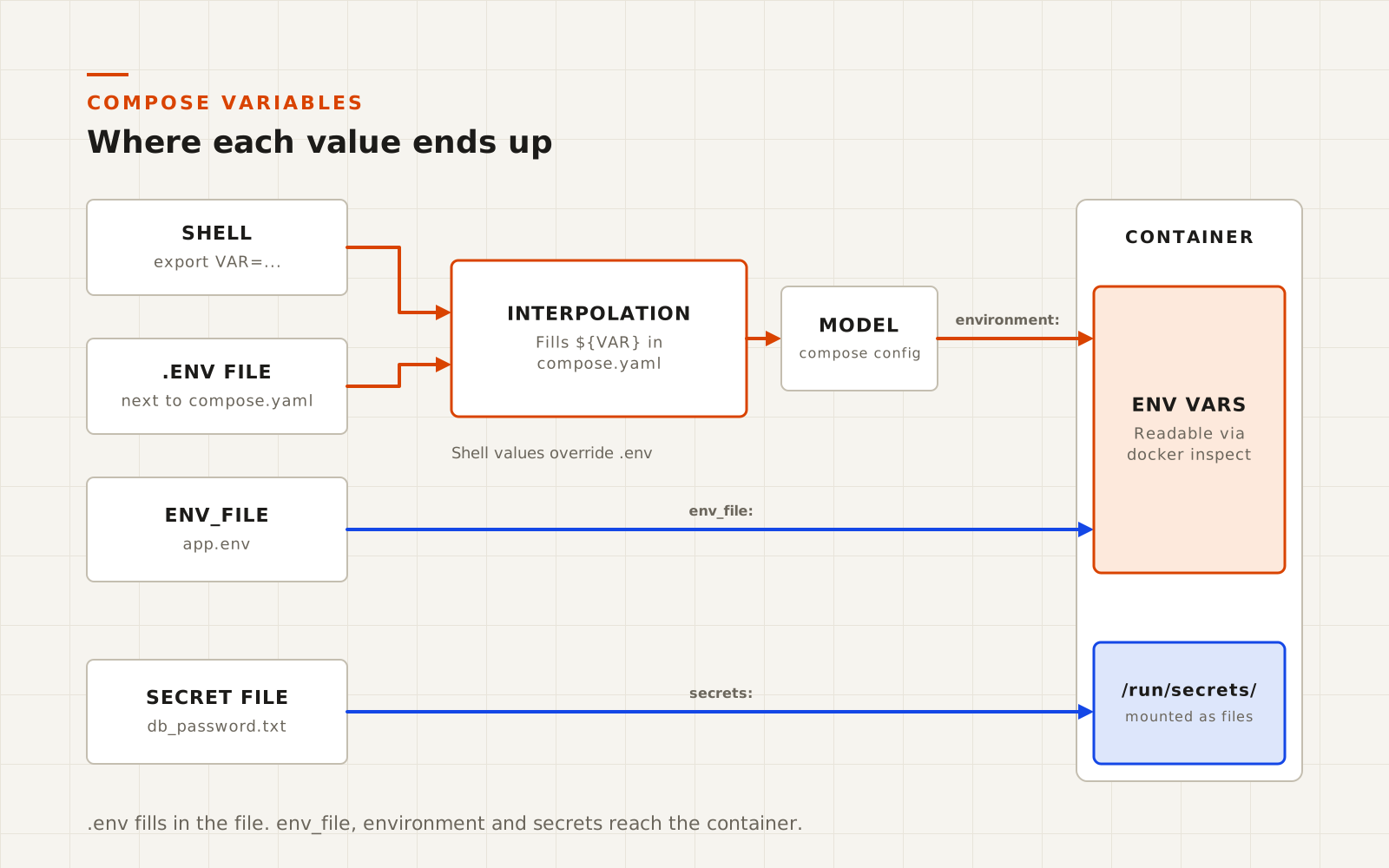
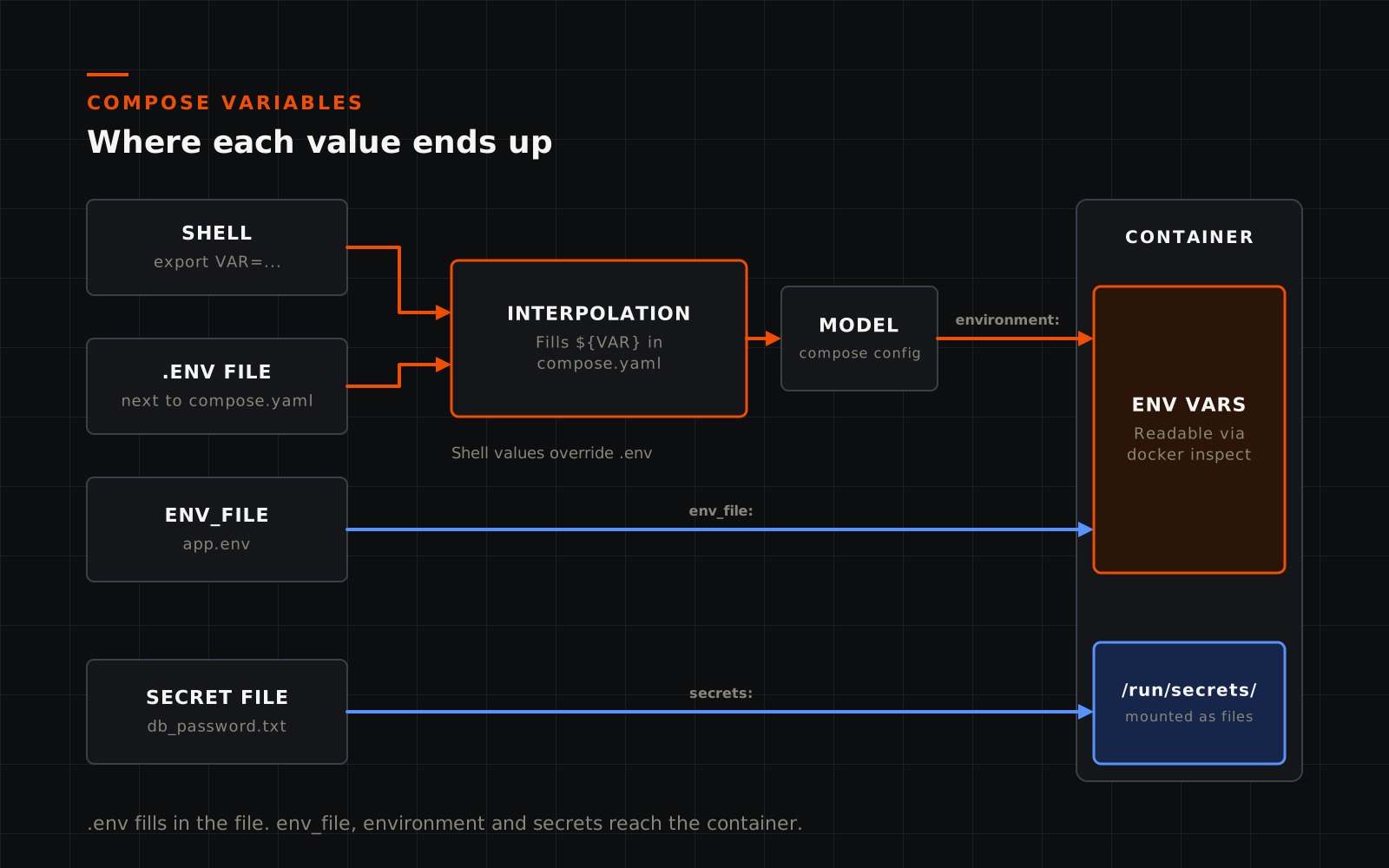
This is the most common source of Compose confusion. There are three mechanisms, and they do different jobs.
The .env file fills in the Compose file
The .env file in the project folder is read by Compose itself, not by your containers. Its values replace ${VARIABLE} placeholders in compose.yaml. This is called interpolation.
# .env
APP_IMAGE=ghcr.io/example/notes:1.8.2
BIND_ADDRESS=127.0.0.1
DB_PASSWORD=6f1c0e...
services:
  app:
    image: ${APP_IMAGE}
    ports:
      - "${BIND_ADDRESS:-127.0.0.1}:8080:8080"
A variable in .env doesn't reach the container unless the Compose file passes it through, for example in an environment entry. Variables exported in your shell take precedence over .env, which is handy for one-off overrides and confusing when you forget you exported something.
Interpolation supports defaults and required values:
| Syntax | Result |
|---|---|
${VAR} | The value of VAR, or empty if unset |
${VAR:-default} | default if VAR is unset or empty |
${VAR-default} | default only if VAR is unset |
${VAR:?message} | Stop with message if VAR is unset or empty |
${VAR:+other} | other if VAR is set and non-empty, otherwise empty |
$$ | A literal $ |
Use :? for anything the stack can't run without, such as passwords and image names. A clear error at up time beats a container that starts with an empty password.
To check the result, run docker compose config. It prints the file exactly as Compose sees it after interpolation. Be careful where you paste that output, because it includes the substituted values.
env_file and environment configure the container
environment and env_file both set variables inside the container:
services:
  app:
    env_file:
      - path: ./app.env
        required: true
      - path: ./app.local.env
        required: false      # skipped if the file doesn't exist
    environment:
      LOG_LEVEL: debug       # wins over the same key in app.env
If the same variable appears in several places, environment beats env_file, which beats any default set in the image. env_file is useful when an app has dozens of settings and you'd rather keep them out of the main file.
Secrets are files, not variables
Secrets take a third route: Compose mounts each one as a file under /run/secrets/. That's safer than an environment variable, for reasons covered in the security section.
Useful additional elements for intermediate users
Once a stack is running, these settings make it more robust and easier to operate.
Rotate logs before they fill the disk
Docker's default json-file log driver doesn't rotate logs unless you configure it, so a chatty container can slowly fill a disk. Set limits per service:
logging:
  driver: local
  options:
    max-size: "10m"
    max-file: "3"
The local driver is more compact than json-file and rotates by default. Alternatively, set a host-wide default in /etc/docker/daemon.json so every container inherits it. If you want logs off the host for searching and alerting, the guide to logs, metrics and traces covers what to collect.
Limit memory, CPU and processes
One misbehaving container shouldn't be able to take the whole host down:
mem_limit: 1g
cpus: 1.5
pids_limit: 200
mem_limit caps memory, and the kernel stops the container's processes if they exceed it. cpus caps CPU time, and pids_limit caps the number of processes, which stops a fork bomb or runaway worker pool. The longer deploy.resources.limits syntax works too. Set limits after watching normal usage for a few days, with headroom. A limit that's too tight causes crashes that look like application bugs.
Shut down cleanly
When Compose stops a container, it sends SIGTERM, waits 10 seconds, then forces it with SIGKILL. Databases and apps with queues may need longer:
stop_grace_period: 60s
init: true
init: true runs a tiny init process as PID 1 inside the container. It forwards signals and reaps zombie processes, which some images don't handle well on their own.
Use configs for small configuration files
configs mounts a file into the container, read-only. Since Compose 2.23.1 you can write the content inline, which keeps a short config file next to the service that uses it:
services:
  proxy:
    configs:
      - source: caddyfile
        target: /etc/caddy/Caddyfile

configs:
  caddyfile:
    content: |
      notes.home.example {
        reverse_proxy app:8080
      }
Add labels for the tools around you
Labels are metadata that other tools read. Reverse proxies such as Traefik discover routes from labels, and update tools use them to opt containers in or out:
labels:
  traefik.enable: "true"
  traefik.http.routers.notes.rule: "Host(`notes.home.example`)"
Anything that reads labels usually needs the Docker socket, so read the socket advice in the security section before adding one.
Advanced Compose techniques
Profiles: optional services in the same file
Assign a service to a profile and Compose skips it unless that profile is active. Services without a profile always start.
services:
  app:
    image: ghcr.io/example/notes:1.8.2

  adminer:
    image: adminer:5
    profiles: ["debug"]
    ports:
      - "127.0.0.1:8081:8080"

  backup:
    image: postgres:17-alpine
    profiles: ["backup"]
docker compose up -d                       # app only
docker compose --profile debug up -d       # app plus adminer
docker compose run --rm backup             # run the backup job on demand
Naming a service directly, as in the run command, starts it even if its profile isn't active. Profiles are ideal for debugging tools, admin UIs you don't want running all the time, and scheduled jobs.
Override files: one base, several environments
If a file called compose.override.yaml exists next to compose.yaml, Compose merges it automatically. Use it for machine-specific tweaks that you don't want in the shared file:
# compose.override.yaml (not committed)
services:
  app:
    environment:
      LOG_LEVEL: debug
    ports:
      - "127.0.0.1:9229:9229"   # debugger
For explicit layering, pass files with -f. Later files override earlier ones:
docker compose -f compose.yaml -f compose.prod.yaml up -d
Merging rules matter. Single values such as image are replaced, while lists such as ports are combined. That means an override can add a port but can't remove one. To clear or fully replace a value, use the !reset and !override YAML tags (Compose 2.24 and later):
services:
  app:
    ports: !reset []                       # remove all ports from the base file
    environment: !override
      LOG_LEVEL: warn                      # replace the whole map
Always check the merged result with docker compose config before you deploy it.
include: split a big stack into parts
include pulls other Compose files into the project, each resolved relative to its own folder:
# compose.yaml
include:
  - monitoring/compose.yaml
  - smart-home/compose.yaml

services:
  proxy:
    image: caddy:2
Unlike -f merging, include treats each file as a self-contained unit and reports an error if two files define the same service. It suits a home lab that has grown into separate areas maintained at different times.
Extension fields and YAML anchors: don't repeat yourself
Compose ignores any top-level key starting with x-. Combine that with YAML anchors (&name), aliases (*name) and merge keys (<<:) to define shared settings once:
x-defaults: &defaults
  restart: unless-stopped
  logging:
    driver: local
    options:
      max-size: "10m"
  security_opt:
    - no-new-privileges:true

services:
  app:
    <<: *defaults
    image: ghcr.io/example/notes:1.8.2

  worker:
    <<: *defaults
    image: ghcr.io/example/notes-worker:1.8.2
Keys you set on the service win over those from the anchor. A merge key copies a whole map but doesn't deep-merge nested maps, so if a service sets its own logging, it replaces the anchor's logging entirely. docker compose config shows the expanded result. extends offers a similar result across files, by copying a service definition from another file.
One-shot jobs: migrations and setup
Some tasks should run once before the main service starts, such as a database migration or fixing volume permissions. Model them as services that exit, and use service_completed_successfully:
services:
  migrate:
    image: ghcr.io/example/notes:1.8.2
    command: ["notes", "migrate"]
    depends_on:
      db:
        condition: service_healthy

  app:
    image: ghcr.io/example/notes:1.8.2
    depends_on:
      migrate:
        condition: service_completed_successfully
If the migration fails, the app doesn't start, which is exactly what you want. Recent 5.x releases have also started adding native init-container and job support. Check the release notes for your version before relying on it, because these features are new and still evolving.
Watch mode for development
If you build your own images, develop.watch syncs code into a running container or rebuilds it when files change:
services:
  web:
    build: .
    develop:
      watch:
        - action: sync
          path: ./src
          target: /app/src
        - action: rebuild
          path: package.json
Start it with docker compose watch. This is a development convenience, not something to run on a home server.
How do you secure a Docker Compose stack?
Compose can't make containers as isolated as virtual machines, because containers share the host's kernel. What it can do is apply least privilege: give each service only the network access, permissions and resources it needs, so a compromised or buggy container can do less damage.
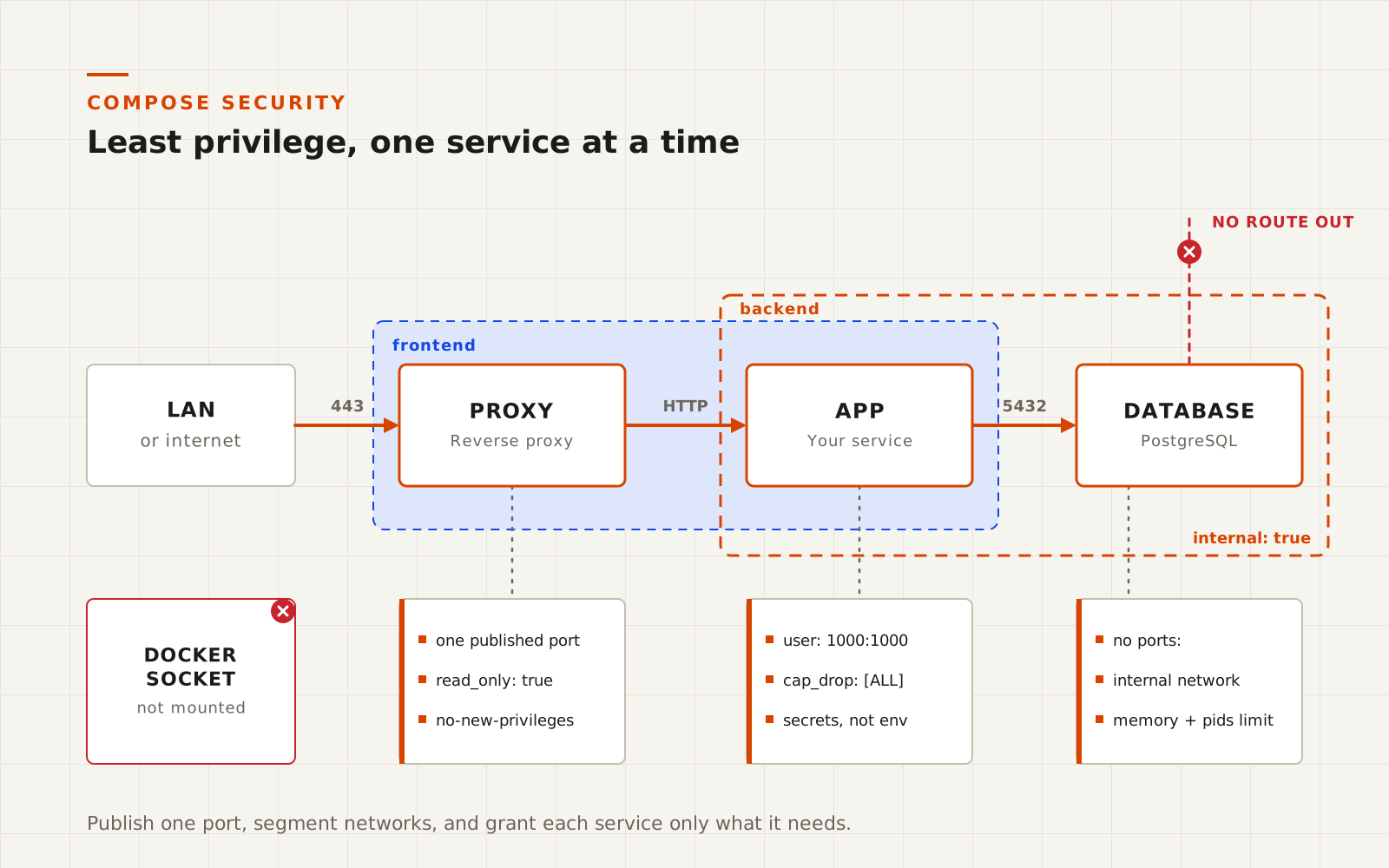
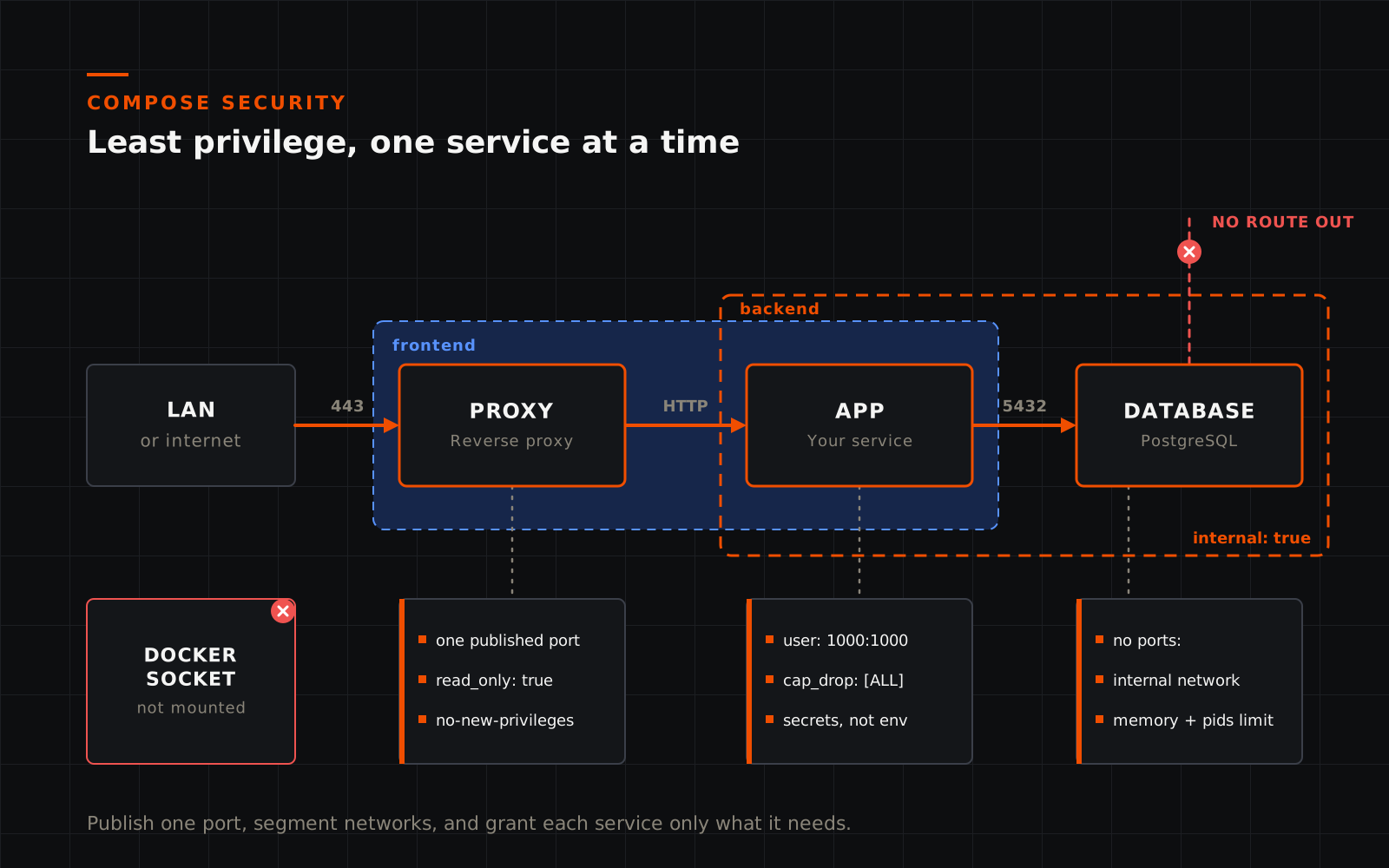
Work through the controls below in roughly this order. The first few cost nothing and break nothing. The later ones need testing per image.
1. Publish as few ports as possible, on the right address
Every published port is a way in. Publish only what people need to reach, ideally just a reverse proxy, and bind admin interfaces to 127.0.0.1:
ports:
  - "127.0.0.1:8080:8080"      # reachable from this host only
Be aware that Docker's published ports bypass host firewalls such as UFW. Docker writes its own packet-filtering rules, so a port published on all interfaces can be reachable even when UFW says it's blocked. Binding to a specific address in Compose is the reliable control. Never forward admin ports on your router. Use a VPN such as WireGuard or Tailscale for remote access instead.
2. Segment networks and give back-end services no way out
Put databases and other back-end services on an internal: true network with no published ports. They then can't be reached from outside, and if they're compromised they can't connect out to download tools or send data. Avoid network_mode: host unless a service genuinely needs it, such as Home Assistant's device discovery, because it removes network isolation entirely.
3. Use secrets instead of environment variables for passwords
Environment variables are easy to leak. Anyone who can run docker inspect sees them, every process in the container inherits them, and they tend to end up in crash reports and debug logs. A Compose secret is mounted as a file at /run/secrets/<name> instead:
services:
  db:
    image: postgres:17-alpine
    environment:
      POSTGRES_PASSWORD_FILE: /run/secrets/db_password
    secrets:
      - db_password

secrets:
  db_password:
    file: ./secrets/db_password.txt
Many official images support this pattern: a variable ending in _FILE tells the app to read the value from a file. PostgreSQL, MariaDB and MySQL images all do.
Get the file permissions right. For file-based secrets, Compose uses a bind mount, so the container sees the host file's ownership and mode. The uid, gid and mode options in the Compose file are ignored for this source type. The container's user must be able to read the file, so a host file with mode 600 owned by your login may be unreadable to a database running as its own user. A practical pattern is to lock down the folder and leave the file readable:
mkdir -m 700 secrets
openssl rand -hex 24 > secrets/db_password.txt
chmod 644 secrets/db_password.txt
echo "secrets/" >> .gitignore
Other users on the host can't get into the 700 folder, while the container reads the file through its mount. Secrets can also come from a variable (environment: DB_PASSWORD under the secret definition), which keeps the value in your .env file but still delivers it to the container as a file.
4. Run as a non-root user
Many images run as root inside the container by default. If an attacker escapes the application, root inside the container is a much better starting point for attacking the host than an ordinary user.
user: "1000:1000"
This works only if the image supports it: the app must not need root to start, and the user must be able to write to its volumes. Many images instead offer a variable such as PUID/PGID (LinuxServer.io images) or switch to their own user after startup (PostgreSQL does this). Check the image documentation first, and prefer images that run unprivileged by design.
5. Drop Linux capabilities and block privilege escalation
Docker gives containers a default set of Linux capabilities, such as changing file ownership, binding to low ports and sending raw network packets. Most applications need none of them:
cap_drop:
  - ALL
cap_add:
  - NET_BIND_SERVICE     # only if it must listen on a port below 1024
security_opt:
  - no-new-privileges:true
no-new-privileges stops processes from gaining privileges through setuid binaries, and it's safe for almost every container, so it belongs in your shared defaults. cap_drop: [ALL] is stronger but more likely to break images that start as root and then change file ownership or switch user. Add capabilities back one at a time, guided by the errors in the logs.
6. Make the filesystem read-only
A read-only root filesystem stops an attacker, or a buggy update, from modifying the application's files. Give the app writable tmpfs mounts for the few places it needs:
read_only: true
tmpfs:
  - /tmp
If the container fails to start, its log normally names the path it couldn't write to. Add a tmpfs or a volume for that path and try again.
7. Set resource limits
mem_limit, cpus and pids_limit are reliability settings, but they're security settings too: they limit what a compromised container can do to its neighbours. Set at least pids_limit and mem_limit on anything exposed to the network.
8. Keep the Docker socket out of applications
Mounting /var/run/docker.sock gives a container full control of Docker, which means root on the host. Adding :ro doesn't help: it stops the socket file being changed, not the API calls made through it.
Only mount the socket into tools whose whole purpose is managing Docker, such as Portainer or Dockhand, and treat their logins as admin passwords. For tools that only need to read container information, such as dashboards, reverse proxies and update notifiers, put a socket proxy in between. A proxy such as Tecnativa's docker-socket-proxy or the LinuxServer.io socket-proxy exposes only the API endpoints you enable, on an internal network.
9. Avoid privileged mode and pass through only the devices you need
privileged: true turns off almost every isolation feature Docker has. If a guide tells you to use it, look for a narrower option first. Usually that's a specific devices entry, such as a Zigbee adapter or a GPU, plus one or two capabilities:
devices:
  - /dev/serial/by-id/usb-YOUR_ADAPTER_ID:/dev/ttyACM0
10. Pin images and know where they come from
A tag like postgres:17 can point at a different image tomorrow. For critical services, pin the exact image digest as well as the tag:
image: postgres:17-alpine@sha256:<digest>
When a digest is present, Docker uses it and the tag becomes a readable label. Get the digest with docker image inspect --format '{{index .RepoDigests 0}}' postgres:17-alpine. Tools such as Renovate can open pull requests to update tags and digests, so pinning doesn't mean falling behind on security fixes.
Prefer Docker Official Images, verified publishers and well-maintained community sources such as LinuxServer.io, and scan images for known vulnerabilities with docker scout cves or Trivy before you trust them.
A hardened service template
Here's what those controls look like together for a simple web service. It uses NGINX's unprivileged image, which runs as a non-root user on port 8080 by design:
services:
  web:
    image: nginxinc/nginx-unprivileged:1.28-alpine
    restart: unless-stopped
    read_only: true
    tmpfs:
      - /tmp
    cap_drop:
      - ALL
    security_opt:
      - no-new-privileges:true
    mem_limit: 256m
    pids_limit: 100
    ports:
      - "127.0.0.1:8080:8080"
    volumes:
      - ./site:/usr/share/nginx/html:ro
    networks:
      - web
    healthcheck:
      test: ["CMD", "wget", "-q", "--spider", "http://127.0.0.1:8080/"]
      interval: 30s
      timeout: 5s
      retries: 3

networks:
  web:
Apply hardening one setting at a time on an existing stack, running docker compose up -d and checking the logs after each change. If you apply everything at once and it breaks, you won't know which setting caused it.
What Compose can't secure
Compose settings operate within the container. Some protections live elsewhere:
- The Docker daemon itself. Rootless Docker, or user-namespace remapping, runs containers so that root inside a container isn't root on the host. These are daemon-level choices, not Compose settings.
- The host. Kernel updates, SSH hardening and disk encryption matter more than any single container setting, because every container shares the kernel.
- The application. A hardened container running an unpatched app with a default password is still a risk. Update images regularly and change default credentials.
- Who can run Docker. Membership of the
dockergroup is equivalent to root. Keep it to admin accounts.
Putting it together: a production-grade reference stack
The Docker host weekend project runs Wiki.js with PostgreSQL. Here's how that stack looks with the techniques from this article applied: shared defaults through an anchor, file-based secrets, an internal database network, log rotation, resource limits, and an on-demand backup job behind a profile.
name: wiki

x-hardened: &hardened
  security_opt:
    - no-new-privileges:true
  logging:
    driver: local
    options:
      max-size: "10m"
      max-file: "3"

services:
  wiki:
    <<: *hardened
    image: ${WIKI_IMAGE:?Set WIKI_IMAGE in .env}
    restart: unless-stopped
    depends_on:
      postgres:
        condition: service_healthy
        restart: true
    environment:
      DB_TYPE: postgres
      DB_HOST: postgres
      DB_PORT: 5432
      DB_USER: wiki
      DB_NAME: wiki
      DB_PASS_FILE: /run/secrets/db_password
    secrets:
      - db_password
    ports:
      - "${BIND_ADDRESS:-127.0.0.1}:8080:3000"
    networks:
      - web
      - database
    mem_limit: 1g
    pids_limit: 200

  postgres:
    <<: *hardened
    image: ${POSTGRES_IMAGE:?Set POSTGRES_IMAGE in .env}
    restart: unless-stopped
    environment:
      POSTGRES_DB: wiki
      POSTGRES_USER: wiki
      POSTGRES_PASSWORD_FILE: /run/secrets/db_password
    secrets:
      - db_password
    volumes:
      - wiki_db_data:/var/lib/postgresql/data
    networks:
      - database
    healthcheck:
      test: ["CMD-SHELL", "pg_isready -U $$POSTGRES_USER -d $$POSTGRES_DB"]
      interval: 10s
      timeout: 5s
      retries: 5
      start_period: 30s
    mem_limit: 1g
    pids_limit: 200

  # On demand: docker compose run --rm backup
  backup:
    <<: *hardened
    image: ${POSTGRES_IMAGE:?Set POSTGRES_IMAGE in .env}
    profiles: ["backup"]
    user: "1000:1000"            # your host user, so dump files belong to you
    depends_on:
      postgres:
        condition: service_healthy
    environment:
      PGHOST: postgres
      PGUSER: wiki
      PGDATABASE: wiki
    secrets:
      - db_password
    volumes:
      - ./backups:/backups
    networks:
      - database
    entrypoint: ["sh", "-c"]
    command:
      - PGPASSWORD="$$(cat /run/secrets/db_password)" pg_dump -Fc -f /backups/wiki-$$(date +%F).dump

volumes:
  wiki_db_data:

networks:
  web:
  database:
    internal: true

secrets:
  db_password:
    file: ./secrets/db_password.txt
The decisions worth noticing:
restartisn't in the shared anchor. The backup job must exit when it's done, so only long-running services get a restart policy.- The password never appears as an environment variable. Wiki.js reads
DB_PASS_FILE, PostgreSQL readsPOSTGRES_PASSWORD_FILE, and the backup job reads the file only for the lifetime ofpg_dump. Note the$$, which stops Compose from trying to interpolate the shell commands. - The database can't be reached from outside, and can't reach out. It joins only the internal
databasenetwork and publishes no ports. - Backups are a profile, not a permanently running container. Schedule
docker compose run --rm backupfrom cron or a systemd timer, and keep testing restores as the weekend project describes.
If you're converting an existing stack, one caution: PostgreSQL's password variables only take effect when the database is first created. Put the current password in secrets/db_password.txt, or the existing database will reject it. The same applies to most database images.
Treat this as a pattern, not a drop-in file. Check each image's documentation for _FILE support and non-root behaviour, and confirm the image tags you pin in .env.
Docker Compose tips and tricks
Small habits that save time:
- Set
name:in every file. Otherwise the project name comes from the folder name, and renaming the folder makes Compose think it's a new project, leaving the old containers orphaned. - Use
docker compose up -d --remove-orphansafter removing a service from the file, so its old container doesn't keep running. - List what's defined with
docker compose config --services,--volumesor--images. - Set
COMPOSE_FILEandCOMPOSE_PROFILESin.envif you always use the same file list or profiles, so you don't have to type-fand--profileevery time. - Copy files in and out with
docker compose cp app:/data/export.json ./. - Watch what's happening with
docker compose eventsanddocker compose top. - Keep one project per folder, with
compose.yaml,.env.exampleand a.gitignorethat excludes.envandsecrets/. Commit the rest to Git. - Comment your decisions. A line saying why a service uses host networking or an extra capability is worth more than any amount of documentation elsewhere.
- Validate in CI or a pre-commit hook with
docker compose config --quiet, which catches syntax and interpolation errors before they reach the server. - Monitor health, not just uptime.
docker compose psshows healthcheck status, and tools such as Uptime Kuma can alert on it. Keep alerts to things someone must act on, as covered in designing actionable alerts.
Common Docker Compose mistakes and how to fix them
| Symptom | Likely cause | Fix |
|---|---|---|
| App can't connect to the database at startup | depends_on waits for start, not readiness | Add a healthcheck and condition: service_healthy |
| Data disappeared after an update | Data was written inside the container, not a volume | Mount a volume at the app's data path, then restore from backup |
Data disappeared after down | down -v deleted the named volumes | Use plain down, and restore from backup |
"the attribute version is obsolete" warning | Old file format header | Delete the version: line |
| Variable is empty inside the container | It's in .env but never passed to the service | Reference it under environment, or use env_file |
Healthcheck or command sees an empty $VAR | Compose interpolated it before the container saw it | Escape it as $$VAR |
| Port reachable even though UFW blocks it | Docker's published ports bypass UFW | Bind to 127.0.0.1 or a specific interface |
| Override file can't remove a port | Lists are merged, not replaced | Use ports: !reset [] in the override |
| Config file mounted as an empty directory | The host file didn't exist when the container started | Create the file first, then recreate the container |
| Database rejects the password after a change | Password variables only apply on first initialisation | Change the password in the database, then update the secret |
Container won't start after adding read_only | The app writes somewhere you didn't provide | Read the log for the path, then add a tmpfs or volume |
The takeaway
Docker Compose turns a pile of containers into a system you can describe, review and rebuild. The core is small: images, restart policies, ports, volumes, environment, networks, and healthchecks for startup order. Learn those and you can run almost anything.
The advanced features earn their place as a stack grows. Profiles keep occasional tools out of the way, overrides and include keep files manageable, and anchors stop you repeating the same ten lines in every service.
Security at the Compose level is mostly about saying no by default: publish one port, bind it to the right address, keep databases on internal networks, use secrets rather than environment variables, and grant capabilities, write access and the Docker socket only to services that genuinely need them. None of these settings is hard on its own. Applying them one at a time, and testing as you go, is what makes a stack both secure and still working.
If you haven't built your Docker host yet, start with the weekend project. If it's running and you're looking for what to add next, the ten best Docker containers for home users is a good place to start.
References
- Docker: Docker Compose overview and Compose file reference
- Compose Specification: services, secrets and interpolation
- Docker: set environment variables and environment variable precedence
- Docker: manage secrets in Compose
- Docker: using profiles, merging Compose files and include
- Docker: control startup order and Compose Watch
- Docker: configure logging drivers and the local logging driver
- Docker: Docker Engine security, packet filtering and firewalls and rootless mode
- Docker Compose: release notes
- OWASP: Docker Security Cheat Sheet
- PostgreSQL: official Docker image documentation
- Wiki.js: Docker installation